Log in to online banking

close

Top Results

Translate website language

This step-by-step guide is here to help make your Civic experience faster and easier! Your experience may be slightly different than this guide, depending on the device you’re using. If you need additional help, contact us at 844-772-4842.

Device instruction type

1. On your iPhone or iPad, open Chrome

Phone screen showing Chrome highlighted.

2. Go to a webpage you want to translate

To translate the language, tap the 3 dots in the bottom right.

Chrome browser Civic homepage with "more" 3 dots in the bottom right highlighted.

3. Select 'Translate' in the settings panel
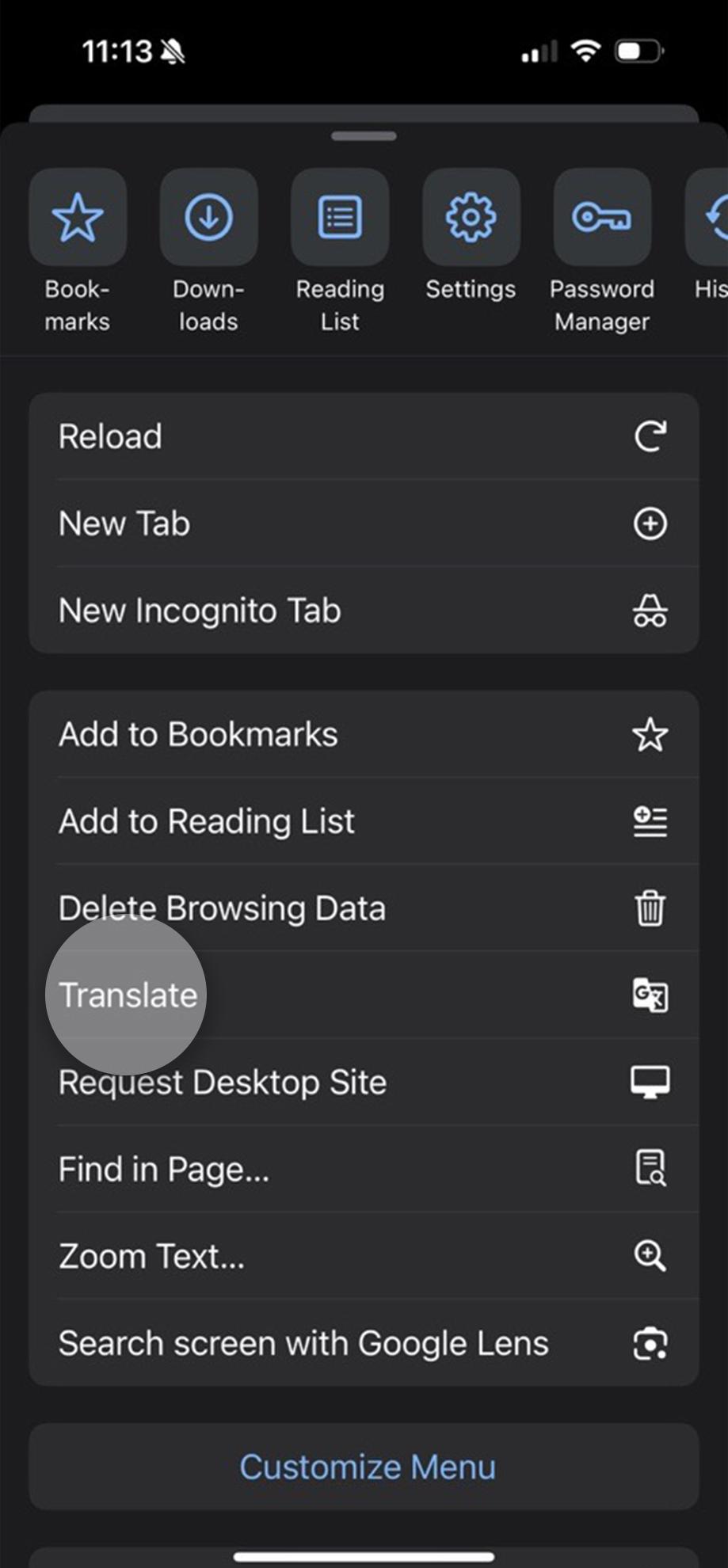
Settings panel opened with translate highlighted.

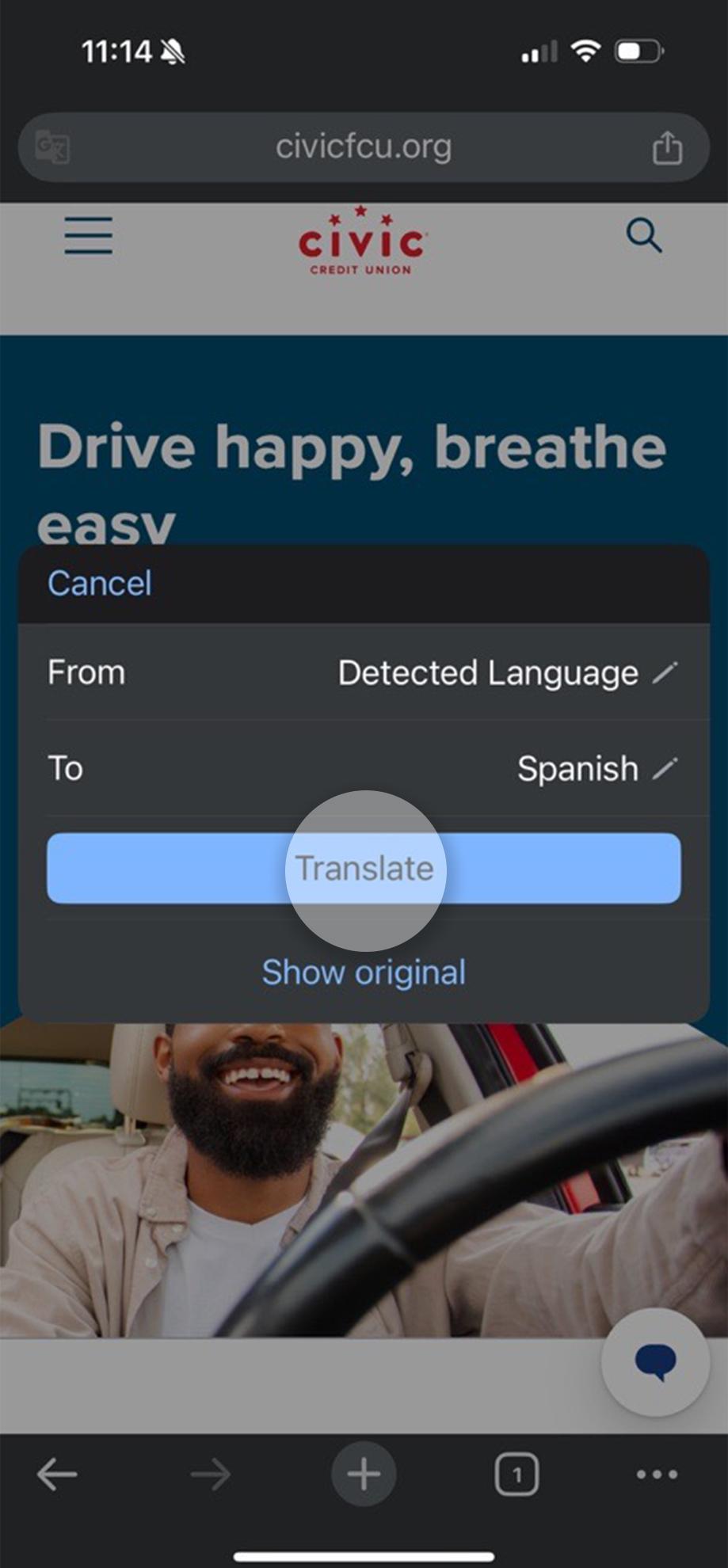
4. Chrome will translate the page

Click the pop-up to open more options.

Translate pop up showing on Civic homepage.

5. Choose a language for translation

After choosing the language, select Translate.

For how-to steps to translate languages using your preferred browser, visit Safari, FireFox, or Edge.

Choosing which language to translate to.

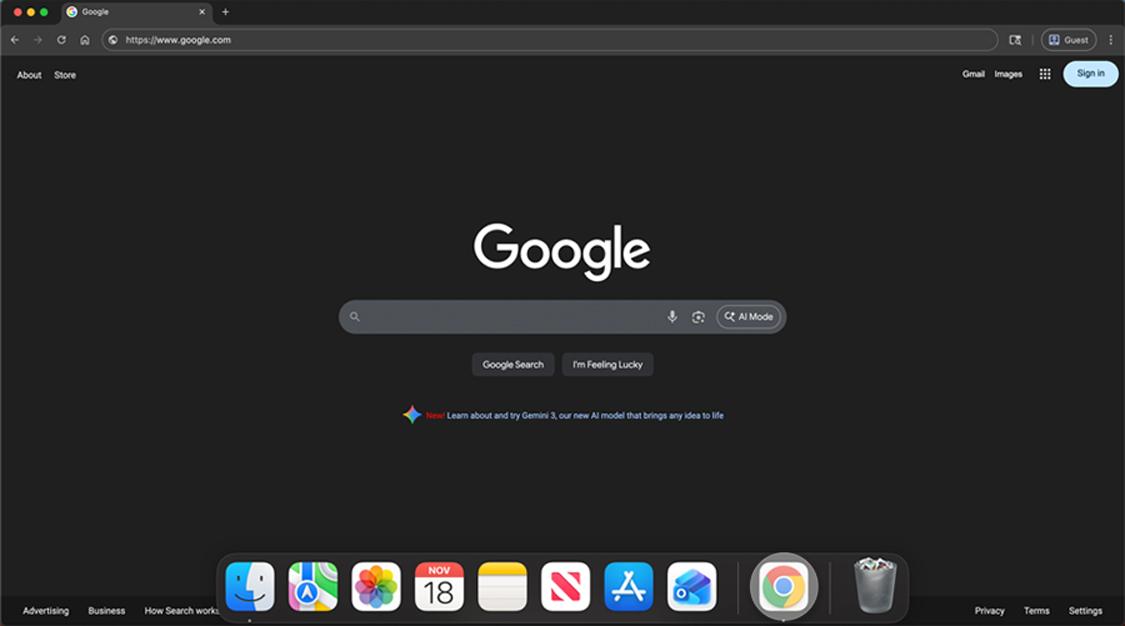
1. On your computer, open Chrome

Google Chrome homepage, with Chrome highlighted in the dock.

2. Go to a webpage you want to translate
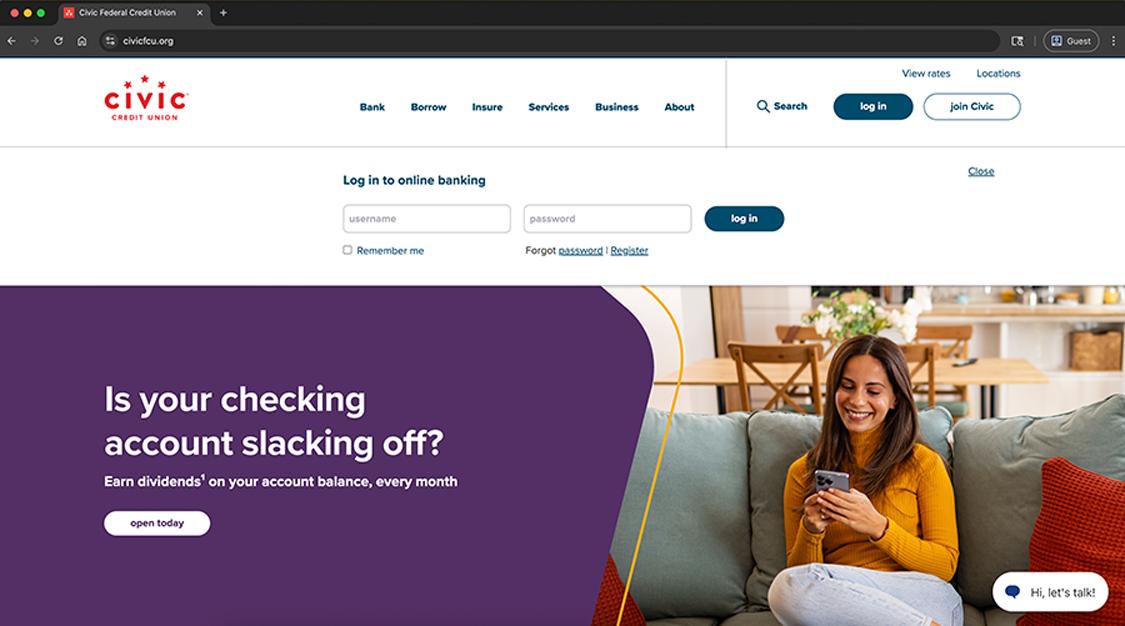
Civic homepage on Chrome.

3. On the right of the address bar, select the 3 dots

Select translate from the drop-down. You can also right-click anywhere on the page and select Translate to [Language].

On the Civic homepage, selected the 3 dots in the address bar to show settings with translate highlighted.

4. Select your preferred language

Click the 3 dots to show more language options. 

For how-to steps to translate languages using your preferred browser, visit Safari, FireFox, or Edge.

Translate option popup on the Civic homepage.

CONGRATS!

That's all for this lesson. Keep up the momentum!